


GIMP
3.2343.00 Reviews
App Specs
- Version
- 26.05.29
- Updated On
- License
- $1.99
- Downloads
- 50,000+
- Developer
- UserLAnd Technologies
- Categories
- Art & Design
- Platform
- Android
Screenshots
 Analysis by AppCompare
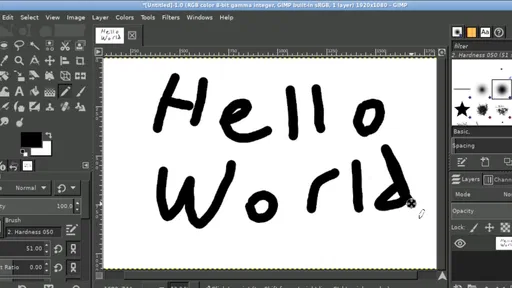
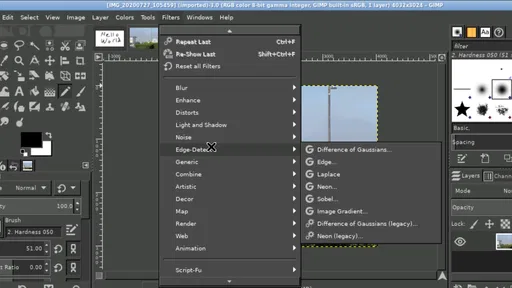
I approached GIMP expecting a serious image editor rather than a simplified phone filter, and that distinction explains almost everything about the experience. This is the mobile version of a familiar desktop-style editing idea, presented by UserLAnd Technologies in the Art & Design category. It can handle much more than quick color tweaks, but it also asks you to be patient with an interface that feels designed around control instead of instant convenience.
My overall view is straightforward: this app is worthwhile for people who want to learn real image-editing techniques on Android and do not mind a steeper first session. It is much less appealing if your goal is to make a polished social post in a few taps. The $1.99 price makes it relatively easy to try, yet the purchase only makes sense when you are prepared to use its deeper tools rather than treating it like another filter app.
What using GIMP on Android actually feels like
The first thing I noticed is that the application does not behave like the usual mobile editor with a large preview, a row of friendly icons, and a handful of automatic effects. Its identity is closer to a compact workstation. That gives me access to a much broader editing mindset, but it also means I spend more time understanding where a command belongs and how a change will affect the image.
That trade-off is not automatically bad. When I want to make a deliberate adjustment, the less simplified approach is useful. I can think in terms of selections, layers, masks, retouching, and controlled changes instead of applying a preset and hoping it looks right. On a larger Android screen, the workspace becomes considerably easier to manage. On a small phone, the same controls can feel cramped, especially when I am trying to make a precise selection or inspect a small detail.
The store summary describes photo retouching and image creation, and that is a fair description of the app’s range. I would not reduce it to a portrait editor. It is better understood as a general-purpose image workspace for people who may switch between repairing a photograph, assembling a graphic, and experimenting with a new composition.
GIMP is marked for Everyone, runs on Android 7.0 or later, and the current version is 26.05.29. Those details make it accessible to a wide range of devices, although the practical experience will still depend heavily on screen size, available memory, and how complicated the project is. A basic edit feels very different from a layered composition with many elements.
The strongest reason to choose it is control
My favorite part of the app is the way it encourages non-destructive thinking, even when the mobile interface takes time to learn. Rather than permanently changing the only copy of a photograph, I can work more carefully by keeping an original version separate and building edits in stages. That habit is especially valuable when I am removing distractions, correcting a product image, or preparing several variations of the same design.
Worth Reading Before You Choose

EA SPORTS FC Mobile 26 Is a Bigger Football Game, but It Takes Time

Flipboard Shows What News Apps Must Do Beyond the Feed

Switching to Android Auto Means Rethinking Your Driving Routine

Google Calendar Makes a Crowded Week Easier to Manage

Ludo King Makes the Most of the Minutes Between Plans

Baby Panda World Brings Quick Play to Modern Phones, but Its Game Library Feels Busy
A useful workflow is to duplicate the source image before doing anything ambitious. I then make broad corrections first, such as overall tone or color balance, and leave small retouching decisions until later. This sounds simple, but it prevents a common mobile-editing mistake: spending several minutes perfecting a detail and then discovering that the larger image still needs a major change.
Another strong point is the suitability for layered work. If I am creating a poster, thumbnail, invitation, or simple composite, separating the background, text elements, photographs, and decorative pieces gives me much more flexibility than a flattened editor. I can revisit one part without rebuilding the entire image. That is a meaningful advantage over many quick-editing alternatives, which are excellent for applying a look but less comfortable when several visual elements need to remain independent.
I also found that the app rewards careful zooming. On a phone, it is tempting to judge everything at the full-image view, but small artifacts become obvious after export or when the image is viewed elsewhere. I prefer to zoom in for edge work, make a modest adjustment, then zoom out to check whether the change still looks natural. This is particularly important when removing a wire, blemish, sign, or stray object, because an overly perfect patch can be more noticeable than the original distraction.
Three workflows where the deeper tools matter
The first practical use case is cleaning up a product photograph for a small online listing. I can separate the background from the item, correct uneven lighting, remove dust marks, and create a consistent version without relying entirely on an automatic enhancement. The benefit is not just visual polish. Working in stages makes it easier to undo one questionable decision without losing the useful work that came before it.
The second is preparing a simple event graphic from existing material. I might begin with a photograph, add a colored background or shape, place text over it, and adjust the composition until the important information remains readable. A lightweight template app may be faster when the design fits a preset, but GIMP is more flexible when the image needs unusual proportions or the supplied elements do not match a ready-made layout.
The third is restoring a personal photograph that needs selective attention rather than a global filter. A full-image effect may brighten a face while damaging the sky, or sharpen a subject while making noise more obvious in the background. I prefer the ability to isolate areas and make changes with more restraint. That extra control is the difference between an edit that looks intentional and one that looks processed.
There is also a less obvious advantage for learners. Because the app does not hide every decision behind a single automatic button, it gives me a better understanding of why an image changes. I can see the relationship between a selection and a local adjustment, between a layer and the final composition, and between a small retouching mark and the texture around it. Someone who wants to develop transferable editing skills may get more from this friction than from a smoother app.
Where the mobile experience becomes frustrating
The main weakness is not a missing gimmick; it is the amount of interface effort required. GIMP is powerful in a way that can feel disproportionate on a phone. Commands, panels, and editing areas compete for space, and precision work is less comfortable when my fingers cover the part of the image I am trying to inspect. I often feel that the application is asking mobile hardware and touch controls to imitate a desktop editing environment.
That matters for speed. If I only have a minute to crop a photo, brighten it, and send it to someone, this is rarely my first choice. A simpler editor gets me to the result with fewer decisions. The same is true for users who mainly want automatic portrait improvements, ready-made social templates, or one-tap artistic effects. GIMP can be made to serve some of those goals, but it is not organized around them.
Text-heavy designs can also require patience. I would not choose this app expecting the smoothest mobile typography workflow or the fastest route to a perfectly aligned promotional post. For a casual graphic, a design-focused alternative may offer better preset layouts and quicker spacing decisions. GIMP makes more sense when I value control over convenience and am willing to arrange the composition myself.
Another limitation is the learning curve. The first successful edit does not necessarily mean I understand the whole workspace. New users can easily wonder why a tool is affecting only part of an image, why a change is not visible, or why a result looks different after switching views. My advice is to begin with a small copy of an image and learn one workflow at a time instead of opening the app with an ambitious multi-layer project.
How it compares with familiar alternatives
Compared with a typical filter-first photo editor, GIMP offers more deliberate control and less instant gratification. The filter app wins when I want a quick mood, a flattering adjustment, or a shareable result without studying the process. GIMP wins when the image contains a specific problem that an automatic preset cannot understand, such as an unwanted object, an uneven section, or a composition that needs rebuilding.
Compared with a template-based design app, GIMP is less guided. A template service usually helps me produce something attractive quickly by making layout decisions in advance. That is ideal for routine announcements and social content. GIMP is better when I need to create a design outside those patterns, use my own structure, or keep the image-editing and compositing work in one place.
Compared with a desktop installation, the Android edition is naturally more dependent on the touch interface and the physical limits of a mobile display. I would still prefer a larger screen for demanding projects, especially when I need to inspect edges or manage many elements. The mobile version is most convincing as a portable editing option, not as a universal replacement for every desktop workflow.
That comparison also explains why the app’s average rating sits at 3.2 from around 1.7 thousand ratings. I read that figure less as a judgment that the editor is incapable and more as a sign that its audience experience is divided. People looking for a familiar, effortless mobile editor may find it awkward, while users seeking a serious tool in a portable format may appreciate exactly the same complexity.
Who should install it, and who should skip it
I would recommend GIMP to students learning image editing, hobbyists who want to move beyond filters, photographers who need selective retouching, and creators who occasionally build layered graphics. It can also suit someone who already understands desktop-style editing and wants an Android option for working away from a computer. The strongest candidates are people who enjoy improving a process over time rather than demanding a perfect result immediately.
I would be more cautious about recommending it to a person who edits only selfies, adds a frame, or prepares quick posts for social media. That user will probably be happier with an app built around automatic results and templates. The same applies to anyone who dislikes menus, has very little patience for experimentation, or normally works on a small screen while standing or commuting.
For an everyday scenario, imagine receiving a slightly dull photograph of a handmade item before a weekend sale. I would open the image, preserve the original, correct the overall appearance, clean a few visible distractions, and build a simple presentation around it. If I had to produce one image immediately, I might use a faster editor. If I expected several revisions or wanted the item, background, and text to remain adjustable, I would choose GIMP instead.
Before paying, I would ask myself one practical question: do I need an editor, or do I need a shortcut? At $1.99, the financial risk is modest, but the time investment is the real consideration. The app is not expensive because it promises a casual collection of effects; its value comes from giving a more capable workflow to someone prepared to learn it.
Small habits that make the app easier to use
I recommend starting with a duplicate of every important image and keeping the original untouched. This is especially useful on mobile, where a rushed tap or an unclear tool state can produce a result that is difficult to reconstruct. I also save incremental versions during a longer project instead of trusting one working file to hold every stage.
For retouching, I work from large corrections to small ones. First I decide whether the crop and general balance are right. Then I handle local problems, checking both close-up detail and the complete image. This prevents the common trap of polishing an area that later disappears because the composition changes.
For composites, I name or organize layers as soon as the project becomes more than a few elements. Even a simple background, subject, and text arrangement becomes confusing when each part looks similar in the workspace. The extra seconds spent keeping the structure clear save much more time when I need to revise the design.
I also avoid judging an edit only on the phone’s bright display. Before sharing, I inspect the image at normal viewing size and check whether edges, shadows, and text still look believable. A mobile screen can make contrast appear stronger than it feels elsewhere, so restraint is usually safer than pushing every adjustment to its maximum.
My verdict after weighing the trade-offs
GIMP is an unusual recommendation for Android because its strongest quality is also the reason many people will dislike it. It offers a serious, flexible approach to photo retouching and image creation, but it does not disguise the work involved. I appreciate that honesty. When I need a controlled edit, a layered graphic, or a project that may change several times, the app gives me more room than a basic filter tool.
Its weaknesses are equally clear: the interface can feel crowded, touch-based precision takes practice, and quick jobs are often easier elsewhere. I would not install it expecting a polished template library or an effortless one-tap workflow. I would install it because I want to make the decisions myself and accept a slower start in exchange for greater control.
UserLAnd Technologies has positioned this as an Art & Design app with broad ambitions, and my experience supports that description. With over fifty thousand installs, it has found a real audience, though the rating suggests that the learning curve should be taken seriously. For me, the final recommendation is positive but specific: choose GIMP when you want a portable editing workspace, not merely a faster filter. If that sounds like the kind of control you have been missing, the $1.99 purchase is reasonable. If you want instant results with almost no setup, another mobile editor will be the better friend.
Pros
- Powerful layer
- mask
- and channel tools for detailed image editing.
- Supports many file formats
- including PSD
- TIFF
- PNG
- JPEG
- and GIF.
- Highly customizable interface with dockable panels and keyboard shortcuts.
- Includes batch-processing options through plugins and external tools.
- Completely free and open source
- with no subscriptions or paid tiers.
Cons
- The interface can feel dated and confusing for first-time users.
- Many advanced features require tutorials or prior editing experience.
- Mobile versions are unofficial or limited compared with desktop GIMP.
- Some plugins may be difficult to install or lack regular maintenance.
- Large projects can become slow when using many layers and effects.
FAQs for GIMP
What is GIMP, and what can I use it for?
GIMP, short for GNU Image Manipulation Program, is a free and open-source image editor for creating, retouching, and enhancing graphics. It supports tasks such as photo correction, background removal, image compositing, digital painting, logo creation, and preparing images for websites or social media. It is aimed at both casual users and experienced designers who need powerful editing tools without paying for a subscription.
Is GIMP completely free to download and use?
Yes. GIMP is distributed as free and open-source software, so you can download and use it without purchasing a license or subscribing to a monthly plan. The program does not normally place watermarks on exported images, and its source code is publicly available. To stay safe, download it from the official GIMP website or a trusted software repository, since unofficial versions may contain unwanted installers or modified files.
Does GIMP work on Android or iPhone?
GIMP is primarily a desktop application and officially supports operating systems such as Windows, macOS, and Linux. There is no official full-featured GIMP app for Android or iPhone that provides the same experience as the desktop program. Mobile users may find unofficial ports or remote-access solutions, but these can be difficult to use on a small screen and may not offer reliable support, performance, or security.
Is GIMP suitable for beginners?
GIMP can be used by beginners, but its extensive interface may feel overwhelming during the first few sessions. Tools, layers, masks, selections, paths, filters, and color options provide considerable control, although they require some learning. New users should begin with simple edits and use the many available tutorials and guides. Once the basic workflow becomes familiar, GIMP is flexible enough for everyday editing and more advanced creative projects.
What are the main limitations or disadvantages of GIMP?
Although GIMP is powerful, it may not be the best choice for every workflow. Its interface and certain tools can feel less intuitive than those in commercial alternatives, and some professional users may miss features designed for advanced print production or specialized color management. Compatibility with complex Adobe Photoshop files can also vary, particularly when files contain unsupported effects, smart objects, or adjustment features.


